AERIX®
Free pack · Vocabulary

The words for every effect on the page.

Each technique in the AERIX page, in scroll order, with its name, what it does and a prompt you can paste straight into your coding agent.

Once you know the name of an effect, you can ask for it. Paste one prompt at a time into an existing page, then adjust the numbers until it feels right.

Loader inside the hero on the AERIX page
01

Loader inside the hero

Also called Preloader as an intro

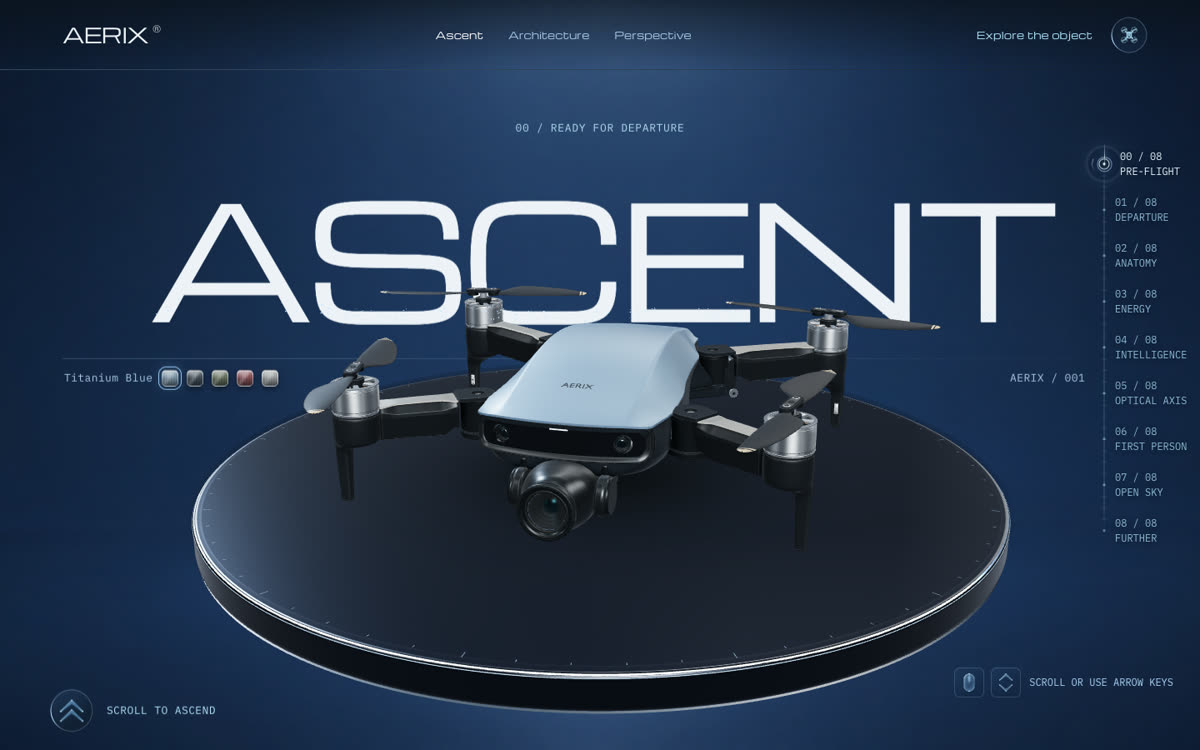
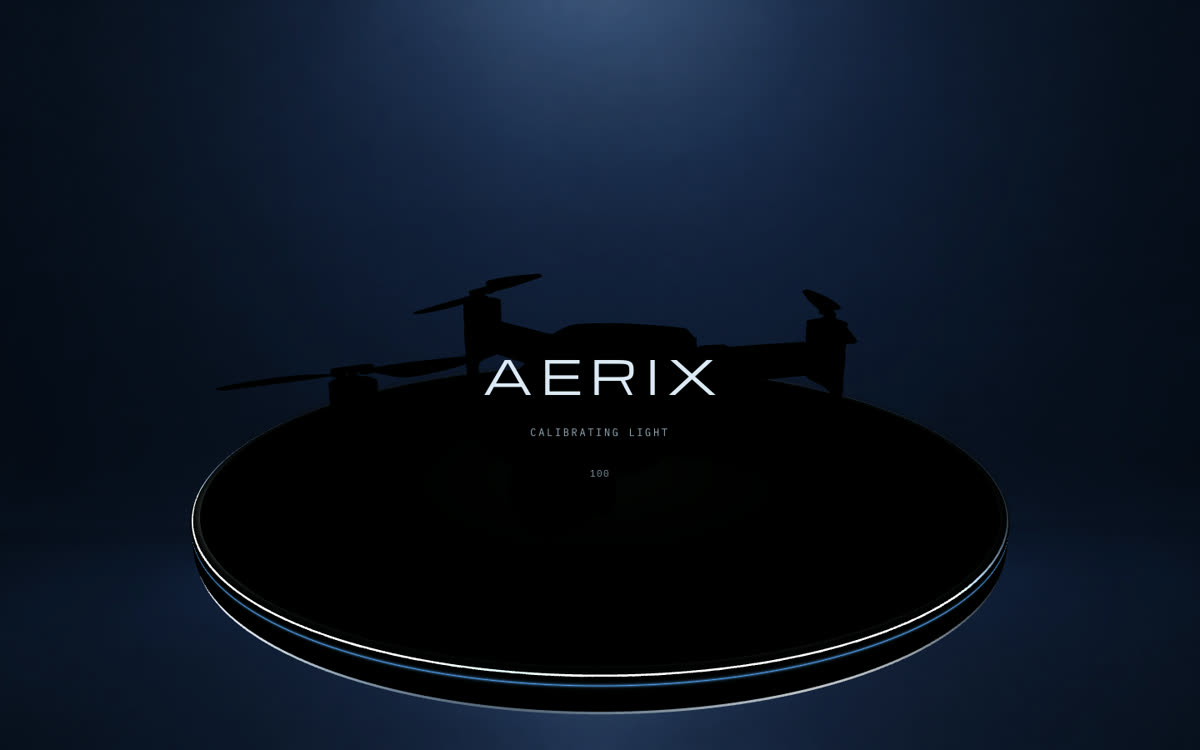
Instead of a separate loading screen, the page loads inside the hero itself. The drone waits on its platform in the dark while a counter runs to 100, then the lights come up on the real scene, so you go straight from dark into light.

On the page · 00 Pre-flight, the first seconds
Copy-paste prompt
Replace my loading screen with a loader that lives inside the hero. While the 3D model loads, show the real hero scene in near darkness with a small counter from 0 to 100 tied to the actual loading progress. When it reaches 100, bring the lights up in order: a rim light first to draw the silhouette, then the key light, over about 2.5 seconds with a slow ease-out. Keep the camera still and hand straight over to the hero, with no fade to another screen.

Rolodex title on the AERIX page
02

Rolodex title

Also called 3D text flip, rotating word drum

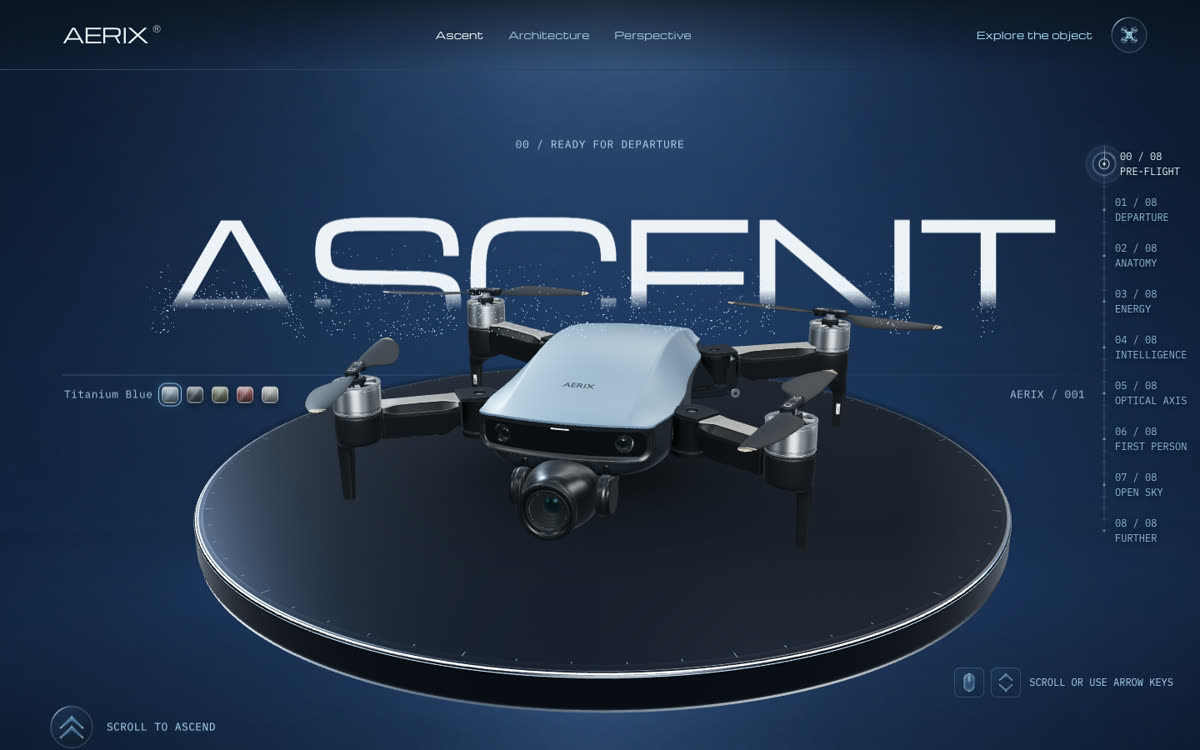
The hero title sits on a 3D drum and flips through its words like a Rolodex before it lands on ASCENT.

On the page · 00 Pre-flight, the hero title
Copy-paste prompt
Make my hero title a Rolodex: put three words on the faces of a 3D drum and flip it one word at a time, each flip about 0.6 s with a heavy ease-out and a small overshoot, landing on [MY WORD]. Shade the faces as they turn away so it reads as a real drum. Use CSS 3D transforms (perspective and rotateX), not a canvas, and keep the final word readable for screen readers.
Particle dissolve on the AERIX page
03

Particle dissolve

Also called Text to particles, disintegration

The big word ASCENT breaks apart into particles as you scroll away from it. Once it has gone, it stays gone until you scroll back up.

On the page · 00 Pre-flight, as you start to scroll
Copy-paste prompt
When my big hero heading [ASCENT] leaves, make it break apart into particles. Sample the text's pixels into a few thousand points on a WebGL layer above the page, and as the visitor scrolls, push each point up and outward with a little random drift while it fades. Tie the dissolve to the scroll position so scrolling back up gathers the word again, and once it has fully dissolved, hide the real text so it never pops back.
Scroll-driven 3D on the AERIX page
04

Scroll-driven 3D

Also called Scrollytelling, one camera and one model

One 3D scene for the whole page. Scrolling moves the story forward and the drone and the camera follow, so the page is one takeoff instead of a stack of sections.

On the page · The whole page
Copy-paste prompt
Build my landing page as one Three.js scene behind the content, with one camera and one model for the whole page. Map the scroll position to a single story value from 0 to 1, and drive the model, the camera and each section's text from that one number, so everything stays in sync scrolling down and back up. Use Lenis for smooth, weighted scrolling and GSAP ScrollTrigger to read the position.
Rotor blur and banking on the AERIX page
05

Rotor blur and banking

Also called Fake motion blur, flight sway

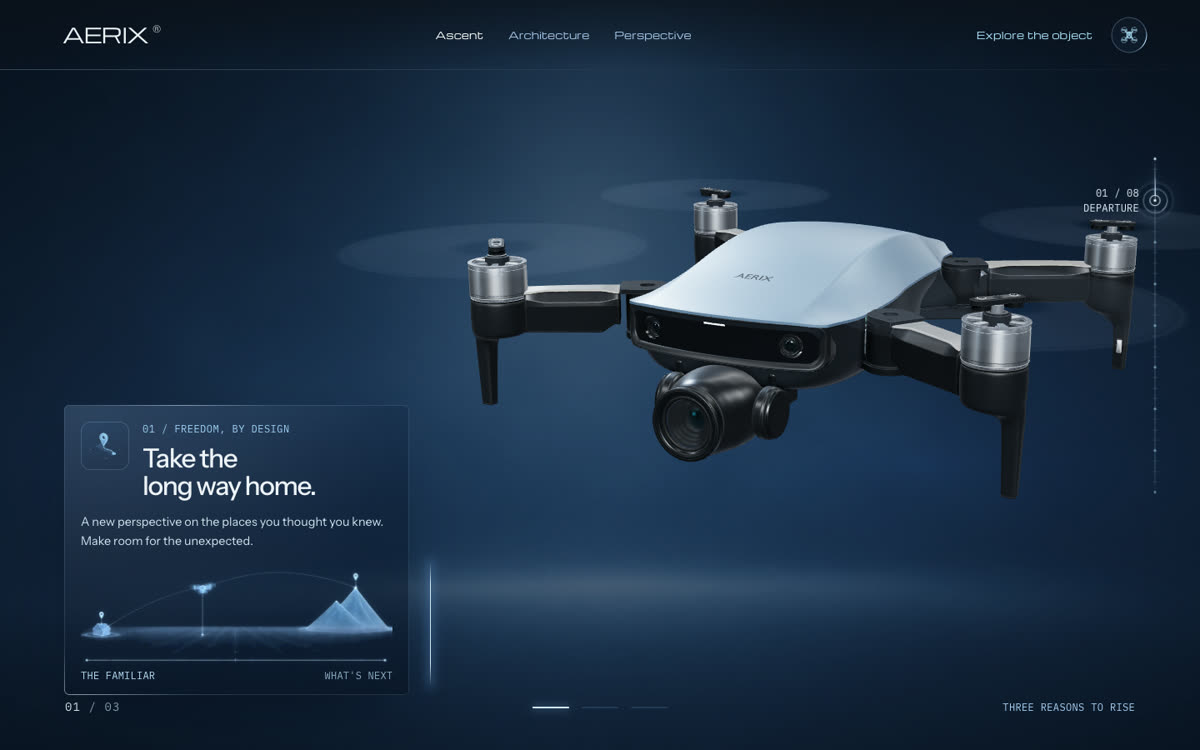
In the model the blades don't move. On the page they turn into soft spinning discs and the drone banks a little as it climbs, so it really feels like it's flying.

On the page · 01 Departure, lift-off
Copy-paste prompt
My drone model's propellers are static. When it takes off, fade each blade out and fade in a thin semi-transparent disc with a radial blur texture in its place, spinning fast, so it reads as rotors at speed. While the drone climbs with the scroll, add a slight bank and pitch (2 to 4 degrees) that follows the scroll speed and eases back to level when the scroll stops.
Progress rail on the AERIX page
06

Progress rail

Also called Scroll progress, chapter navigation

A thin rail on the right shows how far into the flight you are, with a node for each chapter that you can click.

On the page · The right edge, the whole way down
Copy-paste prompt
Add a thin vertical progress rail on the right edge of my page: one small node per chapter, a line that fills as the visitor scrolls, and the current chapter's number and name next to the active node (like 03 / 08 ENERGY). Clicking a node smooth-scrolls to its chapter. Hide the browser's own scrollbar but keep this rail.
Card scan reveal on the AERIX page
07

Card scan reveal

Also called Scanline wipe, clip-path reveal

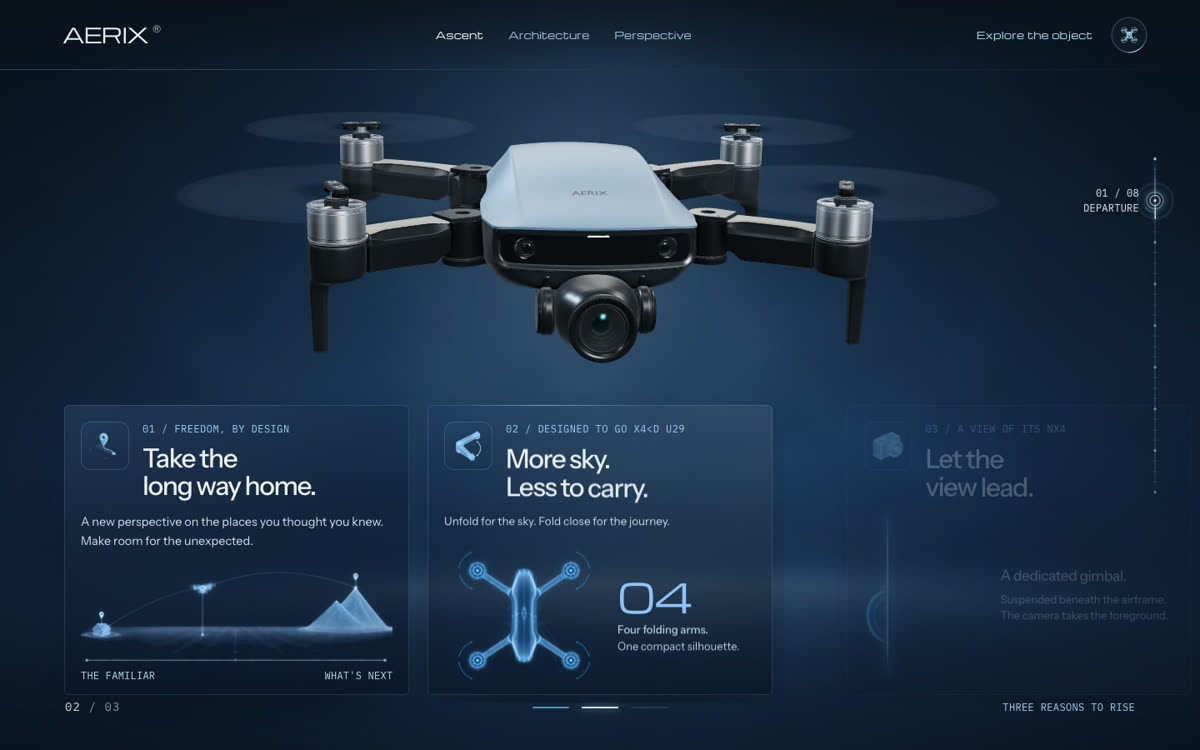
Each card draws itself from top to bottom with a scan line. The blueprint drawing inside is an image, but the scan, the corner marks and the light running round the frame are all code.

On the page · 01 Departure, the three cards
Copy-paste prompt
Reveal each info card with a scan: a bright horizontal line sweeps from top to bottom over about 0.9 s and uncovers the card behind it (animate clip-path inset from 100% to 0), then small corner brackets snap into the corners and a thin light runs once around the border. Fade the card's drawing in behind the scan. Trigger it when the card first becomes visible, and use the same reveal on every card so the page feels consistent.
Text decode on the AERIX page
08

Text decode

Also called Text scramble effect

The small labels decode letter by letter like a scramble. On a tech product it feels much better than a soft fade.

On the page · Every label on the page
Copy-paste prompt
Add a text scramble to all the small uppercase labels on my page: when a label appears, each letter cycles through random characters (A to Z, 0 to 9 and a few symbols like / and #) and settles on the real letter from left to right, over about 0.5 s. Keep the label's width fixed while it scrambles so nothing jumps. Run it each time a label first appears, and again when a step in a stepper becomes the current one.
Menu hover on the AERIX page
09

Menu hover

Also called Hover micro-interaction

Hovering a menu link re-decodes the word while a thin line draws under it and a small glowing dot flies to its end.

On the page · The header menu
Copy-paste prompt
Give my header menu links a hover that fits a flight theme: on hover, re-run the text scramble on the link, draw a 1 px line under it from left to right in 0.3 s, and send a small glowing dot along that line to its end. On mouse out the line pulls back. Skip all of it for visitors who prefer reduced motion.
Type and colour for a tech product on the AERIX page
10

Type and colour for a tech product

Also called Design system, theme

The font, the colours and the text animation all have to fit the product. Here it's a wide, squared display font, a calm sans for reading, a mono for labels and a cool navy and blue palette. Pick them at the start.

On the page · Everywhere
Copy-paste prompt
Set up a type and colour system for a high-tech product page: a wide, squared display font for the logo and the menu (like Michroma), a clean sans for body text (like Instrument Sans), and a mono for small uppercase labels with wide letter spacing (like IBM Plex Mono). Palette: deep navy backgrounds (#07111f to #0b1a2e), one cool blue accent (#6aa8e8) and pale blue text (#cfe4ff). On text, use decodes and quick slide-ups, never soft fades or slow blurs.
Glass panels on the AERIX page
11

Glass panels

Also called Glassmorphism

The cards are dark glass over the 3D scene, so the drone and the worlds stay visible behind the text.

On the page · Every card
Copy-paste prompt
Style my cards as dark glass panels over the 3D scene: background rgba(10, 26, 46, 0.55), a backdrop blur of 14 px, a 1 px border in pale blue at low opacity, a faint highlight along the top edge and a 10 px corner radius. Keep the text crisp and the contrast high enough to read over bright backgrounds.
Exploded view on the AERIX page
12

Exploded view

Also called Layer separation, exploded diagram

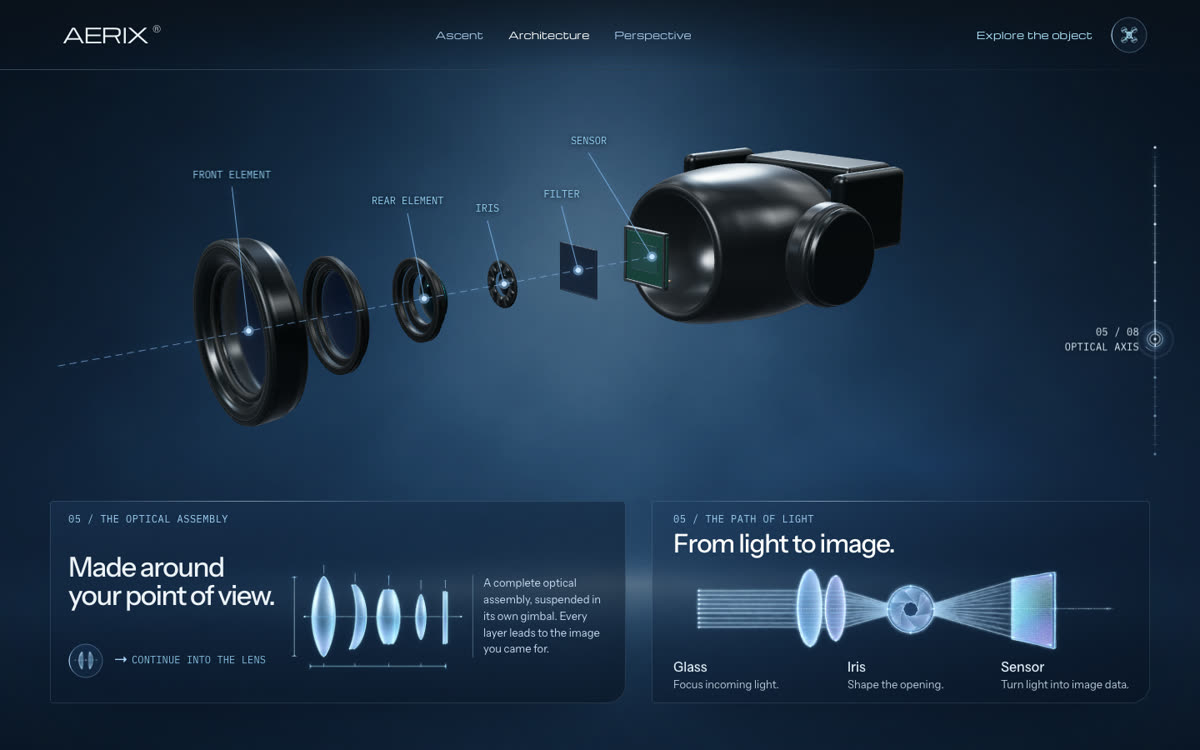
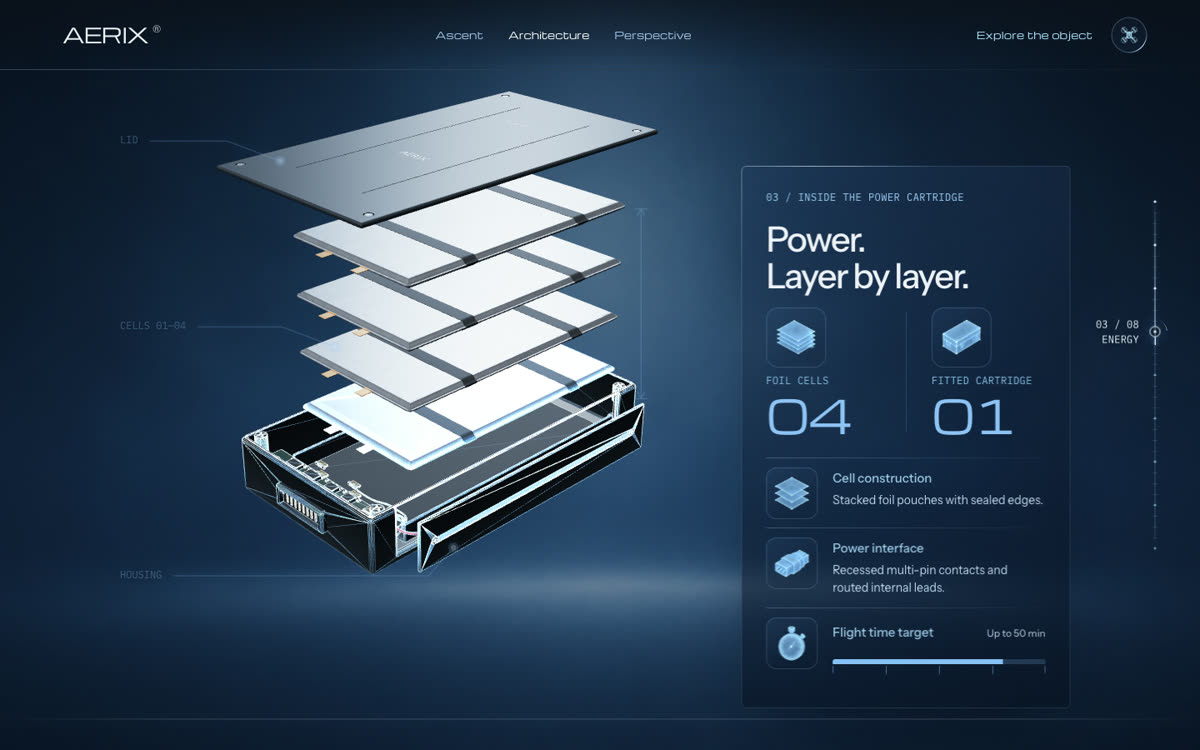
As it flies up, the drone opens into its layers. It only works because every part was planned and modelled first, and it's what gives the page its premium feel.

On the page · 02 Anatomy
Copy-paste prompt
Use my model's real parts to make an exploded view: as the visitor scrolls through this chapter, move each layer [shell, battery, cooling, flight computer, frame] apart along one axis with even gaps, staggered so the outer layers move first, then bring them back together on the way out. Keep the camera slowly orbiting so the depth reads, and keep every part's own materials.
Numbered pins on the AERIX page
13

Numbered pins

Also called Numbered callouts, hotspots

Instead of lines pointing everywhere, each part gets a number that matches its label, which looks much cleaner.

On the page · 02 Anatomy and 04 Intelligence
Copy-paste prompt
Label the parts of my exploded view with numbered pins instead of leader lines. Every frame, project each part's centre from 3D to the screen and draw a small glowing disc with its number (01, 02, 03) there, with a soft pulse on the active one. Show the matching numbered labels in a panel at the side, and highlight a pin and its label together as that part becomes current.
Wireframe scan on the AERIX page
14

Wireframe scan

Also called Scan reveal, wireframe sweep

On the close-ups, a bright band sweeps up through each part with a wireframe of the same mesh trailing behind it.

On the page · 03 Energy, 04 Intelligence, 05 Optical axis
Copy-paste prompt
When a 3D close-up comes into view, run a scan through the model: a bright horizontal band moves from the bottom to the top of the part over about 1.7 s, briefly darkening what it has passed, while a thin wireframe copy of the same meshes trails just behind the band and fades out. Add the band to every material with onBeforeCompile so the original materials stay untouched.
Lens portal on the AERIX page
15

Lens portal

Also called Portal transition, fly-through mask

The camera flies into the drone's lens. For a second you're right at the entrance and see its edge, then you're looking out over a city at night.

On the page · 06 First person
Copy-paste prompt
Move into the drone's point of view by flying through its lens: push the camera toward the camera lens, then show the next scene inside a circle that matches the lens opening (a CSS clip-path circle), with the real lens rim still visible around it. Hold for a beat so the visitor sees the edge, then grow the circle past the corners of the screen as the camera keeps pushing in.
Drone-view worlds on the AERIX page
16

Drone-view worlds

Also called AI video backgrounds, video texture

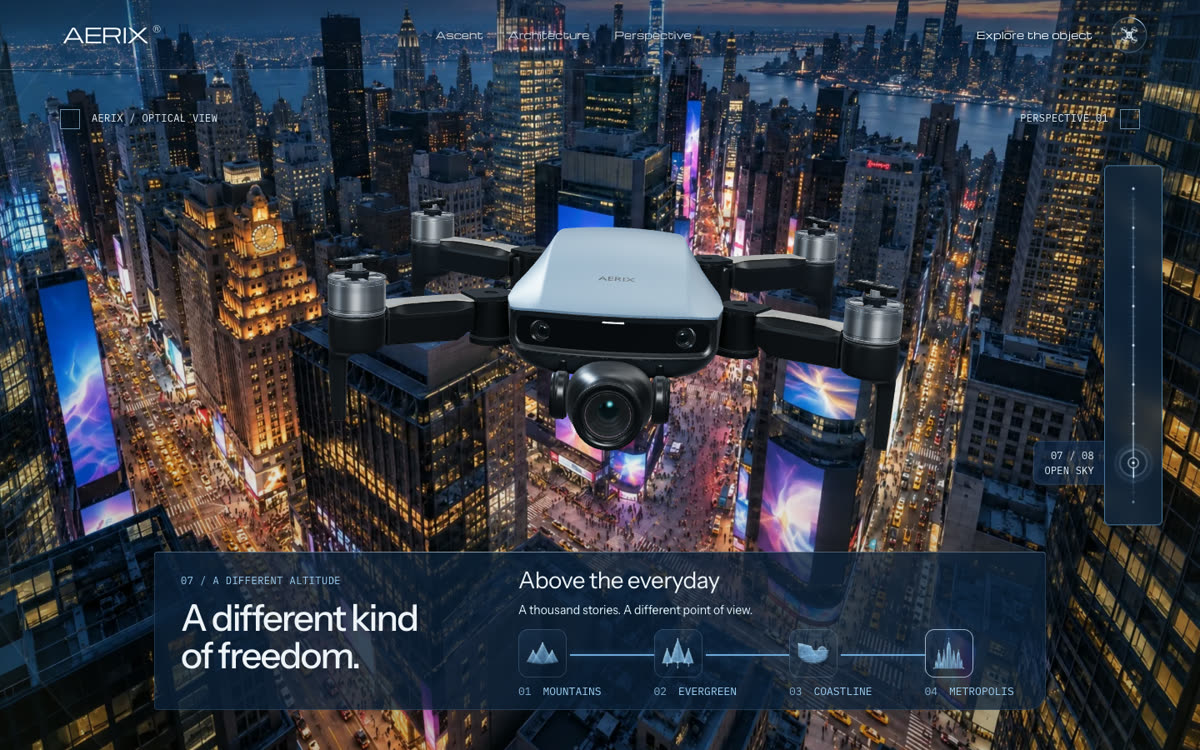
Behind the drone, each world is a 5 second clip made with Seedance 2.5 on Higgsfield and upscaled to 4K. In this pack they're the September stills, and the clip prompts are on the prompt sheet.

On the page · 07 Open sky
Copy-paste prompt
Play a muted 5 second video behind my 3D drone for each world in this chapter. Load each clip as a THREE.VideoTexture into the background shader, show its first frame as a still until it plays, start it as its world begins to fade in, play it once and hold the last frame. Load the clips in the background a chapter early, and only ever play one at a time.
Clip wait on the AERIX page
17

Clip wait

Also called Scroll hold, scroll lock

The page waits for each clip to finish before you can scroll on, with a little line filling up under the steps, so every scene plays as one continuous shot.

On the page · 07 Open sky
Copy-paste prompt
Make my page wait for each world's video before the visitor can scroll on. When the scroll reaches the end of a world, ease to a stop (Lenis scrollTo with lock: true), then lenis.stop() until the video ends, and let go about half a second before the end so the next world fades in on a moving shot. Show the wait as a line filling between the step icons. Only hold when scrolling forward, never on the way back up, and let menu clicks skip the waits.
Crossfade between worlds on the AERIX page
18

Crossfade between worlds

Also called Dissolve transition

Each world dissolves into the next in one shader, and the captions take turns through the same dissolve so they never overlap.

On the page · 07 Open sky
Copy-paste prompt
Blend my background worlds in a single fragment shader: pass every world texture plus one mix value per transition, and dissolve from one to the next over a short stretch of scroll with a smoothstep ease. Cross the captions on the same timing so the old caption is gone before the new one appears.
Pointer flight on the AERIX page
19

Pointer flight

Also called Mouse parallax, pointer follow

On the last view the drone follows your mouse a little, as if you're flying it, so it never stands still.

On the page · 07 Open sky, the last view
Copy-paste prompt
Let the visitor fly my drone a little with the mouse: map the pointer position to a small offset and tilt (up to about 6 degrees of bank toward the pointer and a short drift), smoothed with a lerp so it feels weighted, and add a slow idle hover so it never stands completely still.
Landing and finish picker on the AERIX page
20

Landing and finish picker

Also called Product configurator, colourways

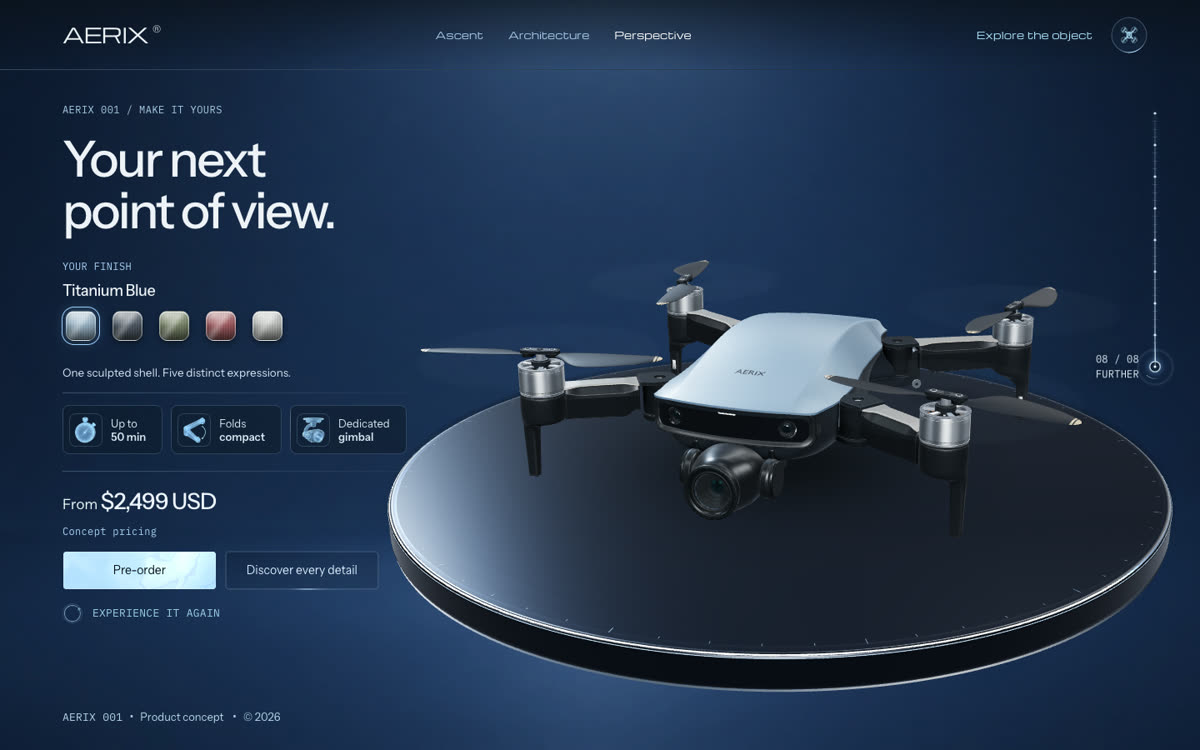
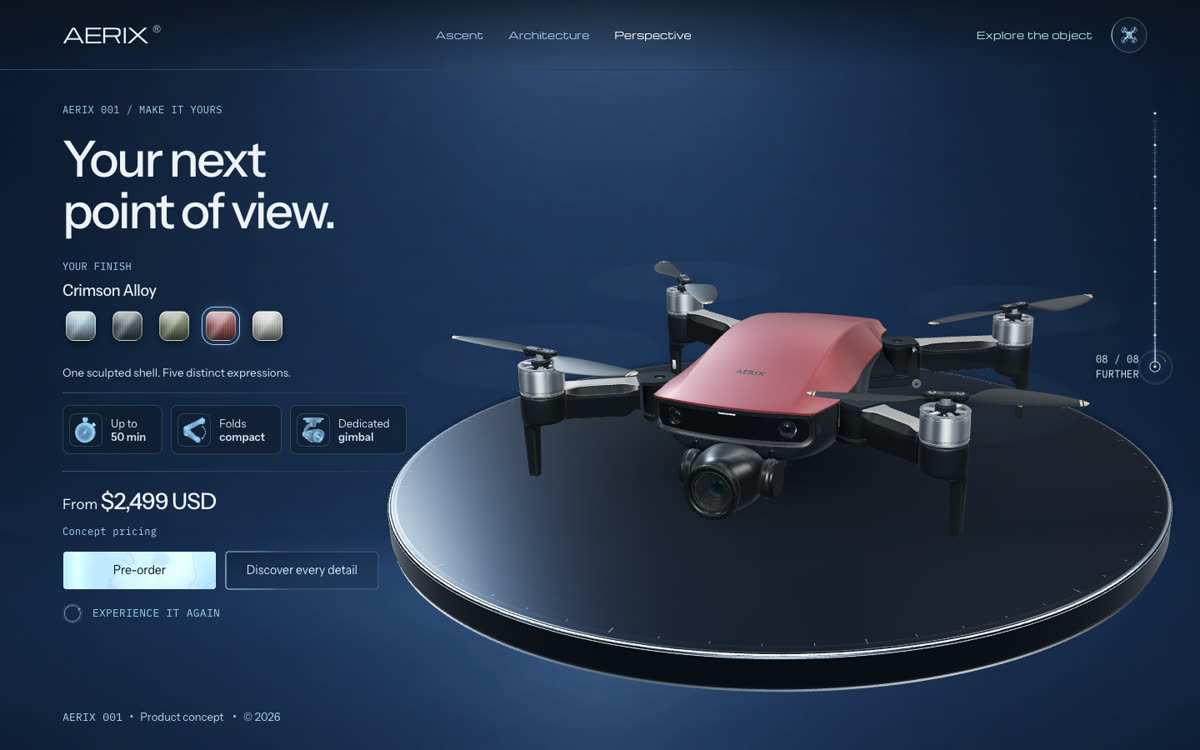
The drone slowly lands back on the platform it took off from, and you can switch it between five finishes.

On the page · 08 Further
Copy-paste prompt
End my page with the drone landing back on its launch platform, then add a finish picker: five rounded-square swatches with a brushed-metal look (layered gradients for the gloss and the grain), and clicking one changes the drone's body colour and roughness with a short 0.6 s blend. Show the finish name and the price next to the swatches.
NO STILL
THIS ONE HAPPENS
BEHIND THE SCENES
21

Staged loading

Also called Progressive loading, streaming

Bonus, not in the video. The drone shows up from a light 7 MB file first, and its inside parts and full textures stream in while you scroll, instead of one huge file before the first frame.

On the page · Behind the scenes
Copy-paste prompt
My 3D model is too heavy to load before the first frame. Split it into a light hero file (the outside, small textures) and a details file (the inside parts), list them in a manifest, and load the hero first. Stream the details and the full-size textures in the background through one queue, most urgent first, one at a time, and swap them in without a visible jump.